
Ready to say goodbye to Snapchat? You’re in the right spot. This guide will show you how to delete your Snapchat account for good. We’ll cover why you might want to do this and what to expect during the 30-day wait.
Snapchat’s deletion process isn’t quick. After you deactivate, your account will wait 30 days before it’s gone for good. Let’s get into the details and see how to delete your Snapchat account on various platforms.
We aim to make this easy for you. Whether you’re cutting down on digital stuff or just taking a break, we’ve got your back. If you’re on an Android, you must delete your account through the Snapchat website. But, if you’re on iOS, you can do it all in the app.
Before you delete your account, make sure to get a copy of your Snapchat data. PCMag’s guide says this is key to saving your important stuff. Snapchat will email you a link to download your data, so watch your inbox.
Introduction to Deleting Your Snapchat Account
Snapchat has over 300 million users worldwide. It’s known for its fun and short-lived messages. If you’re thinking of taking a break or leaving Snapchat for good, it’s key to know how to delete your account.

Thinking about leaving Snapchat means considering what it means for you. Deactivating your account pauses your activity on Snapchat. You can reactivate it within 30 days. But, if you delete your account, it’s gone for good after a 30-day wait.
Knowing the steps to delete your account is important. Snapchat doesn’t let you temporarily deactivate. So, deciding to delete your account should be a careful choice.
Why You Might Want to Delete Your Snapchat Account
There are good reasons to delete your Snapchat account. In today’s world, keeping our online presence and data safe is key. We’ll talk about why canceling your Snapchat account might be good for your digital health.

Reducing Digital Footprint
Deleting Snapchat can help reduce your digital footprint. Taking control of our online actions helps protect us from risks. A study showed that less online presence can lead to better self-care and real-life connections.
Parents often worry about how much time kids spend on screens. This shows the need to manage our digital habits well.
Concerns About Privacy and Data Security
Data security is a big concern today. Erasing your Snapchat account is a strong move against data breaches or misuse. Snapchat can deactivate accounts that break its rules, putting your data at risk.
By canceling your account, you ensure your data is safe. This gives you peace of mind.
Minimizing Time on Social Media
Deleting Snapchat can also improve your mental and emotional health. Users often feel stressed to share every moment. After deleting Snapchat, many found more free time and a stronger connection to the present.
Busy high school students might find more value in real-life experiences and friendships by spending less time on Snapchat.
Preparing to Delete Snapchat: Download Your Data
Before you delete Snapchat history or deactivate your account, download your data first. This way, you keep all your important memories and info safe. Here’s a simple guide to help you do this.
How to Request Your Snapchat Data
Getting your Snapchat data is easy. Just go to your Snapchat settings and find ‘My Data’ at the bottom. There, you can ask for your data. This is key if you want to delete Snapchat but keep your data.
Format Options for Data Download
Snapchat lets you download your data in a ZIP file. You can choose the time frame and what data you want, like your profile, snaps, chats, and more. After you email Snapchat, they’ll send you a ZIP file with all your data.
Email Confirmation and Retrieval Process
After you ask for your data, Snapchat emails you a confirmation. Just follow the email’s instructions to download your data. This is a crucial step if you’re going to delete Snapchat history.
Also, remember Snapchat keeps your purchase records even after you delete your account. So, knowing how to get and keep your data safe is important before you delete your account.
By following these steps, you make sure all your important memories and info are safe before you delete or deactivate your Snapchat account.
How to Delete Snapchat on a Web Browser
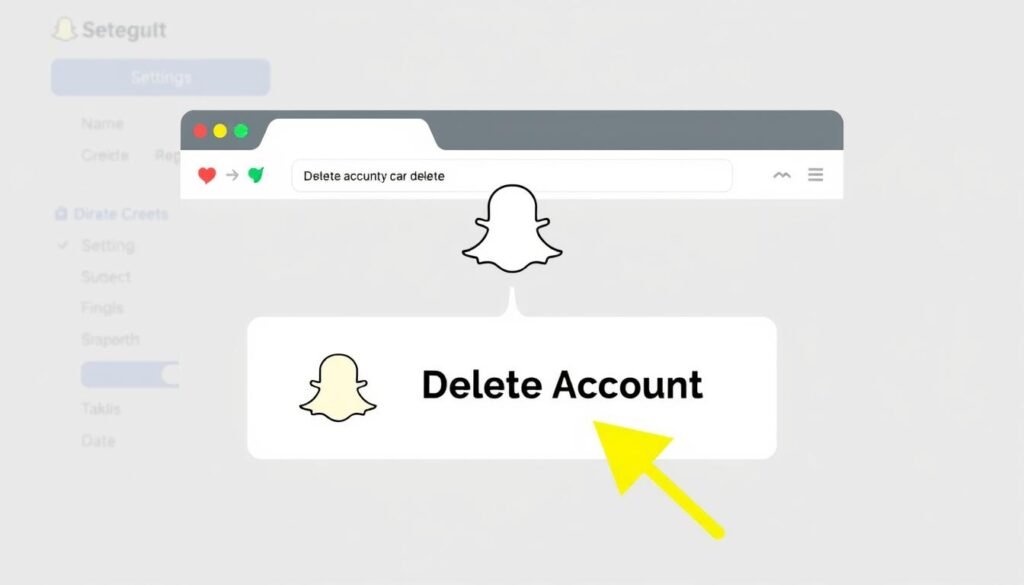
Deleting your Snapchat account on a web browser is easy. Just follow a few steps. This guide will show you how to get to the Snapchat Accounts Portal, enter your details, and confirm your request.
Accessing the Snapchat Accounts Portal
First, go to the Snapchat Accounts Portal. Open your web browser and visit the official Snapchat Accounts Portal. You’ll need to log in with your Snapchat info.
Entering Your Account Information
Once you’re in, enter your account details. You’ll need your username and password. These are important to prove it’s really you before you delete your account.
Confirming Your Deactivation Request
After checking your info, you can delete your Snapchat account. Click the delete option and follow the instructions. Snapchat gives you 30 days to change your mind. If you log in during this time, your account will be back.
And that’s it! You now know how to delete Snapchat on a web browser. This method ensures all your Snapchat data is gone for good. It’s a step towards better digital privacy.
How to Delete Snapchat Using the iOS App
For iOS users, deleting or deactivating Snapchat accounts is easy through the app. This guide will show you how to navigate the app settings, find the deactivation option, and complete the process. This ensures your account is removed smoothly.
Navigating the App Settings
First, open Snapchat on your iOS device and log in. Tap your profile icon at the top left. Then, tap the gear icon in the top right corner for settings.
This opens the settings menu. Here, you’ll find options to customize your experience.
Finding the Deactivation Option
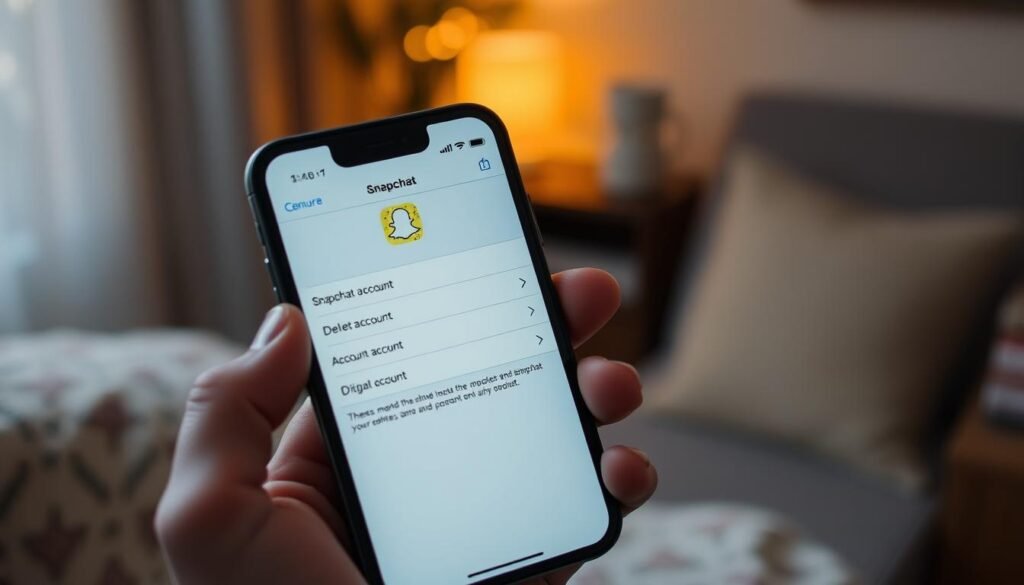
In settings, scroll down to “Support.” Tap “I Need Help” to open the support page. Choose “My Account & Security,” then “Account Information,” and tap “Delete Your Account.”
Completing the Deactivation Process
On the deactivation page, enter your password again for security. Tap “Continue” to confirm your request. Note that deactivation freezes your account for 30 days.
You can recover your account by logging back in during this time. If you don’t log back in, your account will be deleted forever. Deactivation won’t delete messages or saved Snaps and Memories right away.
For more detailed steps, check out this guide.
Just uninstalling the app won’t delete your Snapchat account. Remember this to ensure your account is deleted as you wish. These steps help keep your digital life private and manage your social media better.
Understanding the 30-Day Deactivation Period
When you decide to delete your Snapchat account, it doesn’t vanish immediately. Snapchat has a 30-day deactivation period. This time lets you reconsider and reactivate your account if you want. Let’s explore what happens during this period and how to get your account back if you change your mind.
What Happens During Deactivation
During the Snapchat 30-day deactivation, your account is in a waiting state. Here’s what you can expect:
- Your friends won’t be able to reach or interact with you on Snapchat during this time.
- Your account data stays in Snapchat’s servers, but it’s not accessible to others.
- If you don’t log back into your account within 30 days, it will be permanently deleted.

How to Restore Your Account
If you decide to return to Snapchat before the 30-day period ends, you can reactivate your account. The steps are simple:
- Open the Snapchat app or visit the Snapchat website.
- Log in with your username and password. Note that email login for reactivation is not supported.
- Once logged in, your account will be restored with all your previous contacts and data.
If you face any problems with reactivating your account, Snapchat offers support. Remember, not reactivating within 30 days will lead to permanent deletion. So, it’s important to act quickly.
Many users value downloading and securing their Snapchat data for future use. Always consider the pros and cons of keeping or deleting your account. For those who value privacy, using secure communication tools and adding extra security like VPNs can offer more peace of mind.
Steps to Reactivate Your Snapchat Account
Reactivating your Snapchat account is easy if you do it within 30 days. We’ve broken down the key steps to help you get your account back. Remember, acting fast is key to avoid losing your account forever.
- Log In to Your Account: Open Snapchat and tap “Log In.” Use your username to avoid login problems.
- Enter Credentials: Type in your username and password. If you forgot your password, use “Forgot Password” to reset it.
- Confirm Reactivation: After logging in, Snapchat will tell you your account is deactivated. Tap “Yes” to reactivate it.
Snapchat says it might take up to 24 hours to fully reactivate your account. If your account has lots of data, like friends and chats, it could take longer.
Make sure your internet is working well and any VPNs are off if you have login issues. If problems persist, try restarting the app or reaching out to Snapchat support.
The time you have to reactivate Snapchat after deactivation is usually 30 days. By following these steps, you can get back into your account and enjoy Snapchat’s features without losing any data.
“Snapchat temporarily deactivates your account for 30 days after deletion. If it’s not reactivated within this period, the account and associated data will be permanently deleted.”
Being quick is crucial; act fast to reactivate your Snapchat account and avoid losing it forever. For more on deleting and restoring Snapchat accounts, check out the official guide.
Permanent Account Deletion: What to Expect
Deciding to delete Snapchat permanently means understanding the process and its effects. Let’s look at the timeline and what happens after you delete your account for good.
Timeline for Permanent Deletion
When you ask to delete your Snapchat account, it starts a 30-day countdown. During this time, you can easily get your account back by logging in with your email and password. But, if you don’t log in within 30 days, your account will be gone forever. This gives you enough time to change your mind and get back in.
Consequences of Permanent Deletion
Deleting your Snapchat account permanently has serious effects. After 30 days, all your data, like photos, chats, and friends, will be lost forever. This includes saved messages and your Bitmoji account. Remember, once your account is deleted, you can’t get it back or recover your data.

Conclusion
As we wrap up, let’s think about deleting Snapchat one last time. We’ve looked at how to do it, why you might want to, and what it means. We’ve covered everything from reducing your online presence to backing up your data.
Deleting Snapchat is more than just leaving an app. It’s about protecting your privacy, managing your time, and looking after your well-being. By following our steps, whether on a web browser or the iOS app, you can delete your account safely. Remember, you have 30 days to change your mind and get your account back.
We hope this guide has given you the power to control your online life. With the knowledge we’ve shared, you can make your online presence safer and more focused. Let’s make smart choices and handle our digital lives with purpose! 🌟